
Connecting BS8080 Newland Barcode scanners to your POS
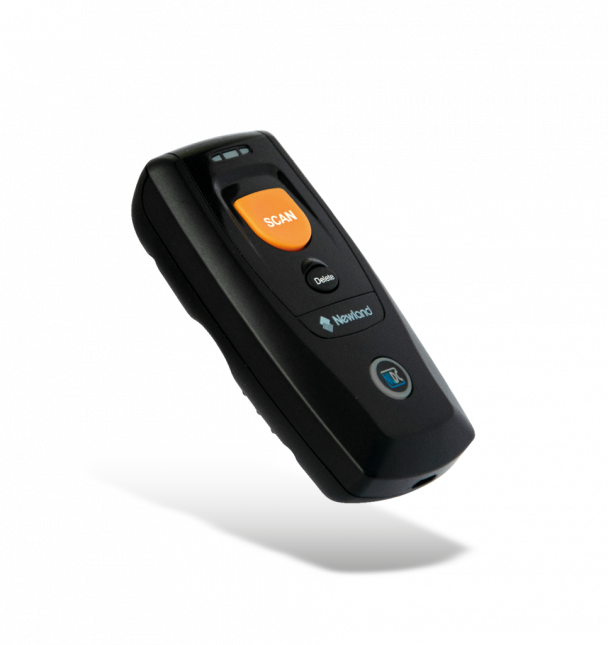
This guide outlines the steps required to successfully connect your Newland BS8080 barcode scanner to your AirPOS POS device.
Before You Begin
Please ensure:
- The scanner is fully charged
- You have access to the scanner manual (physical or digital) just in case you are unable to scan the barcodes from this article.
The online user manual for this Newland scanner can be found here: https://www.ers-online.co.uk/files/products/files/bs80-piranha-ii-1d-user-guide.pdf
Step 1: Enter Setup Mode
Scan the barcode below to begin setup:

This places the scanner into configuration mode.
Step 2: Enable Bluetooth HID Mode
Scan the barcode below:

This allows the scanner to function as a Bluetooth keyboard, which is required for use with the POS.
Step 3: Pair the Scanner to Your Device
- Open the Bluetooth settings on your tablet
- Wait for the scanner to appear in the list of available devices
- Select the scanner (usually labelled BS80 or similar)
- Accept the pairing request if prompted
Step 4: Configure Barcode Formatting
Scan the barcode below:

This ensures barcodes are scanned correctly and prevents leading digits from being omitted.
Step 5: Exit Setup Mode
Scan the barcode below to complete setup:

The scanner is now ready for use.
Powering the Scanner On and Off
To Power On
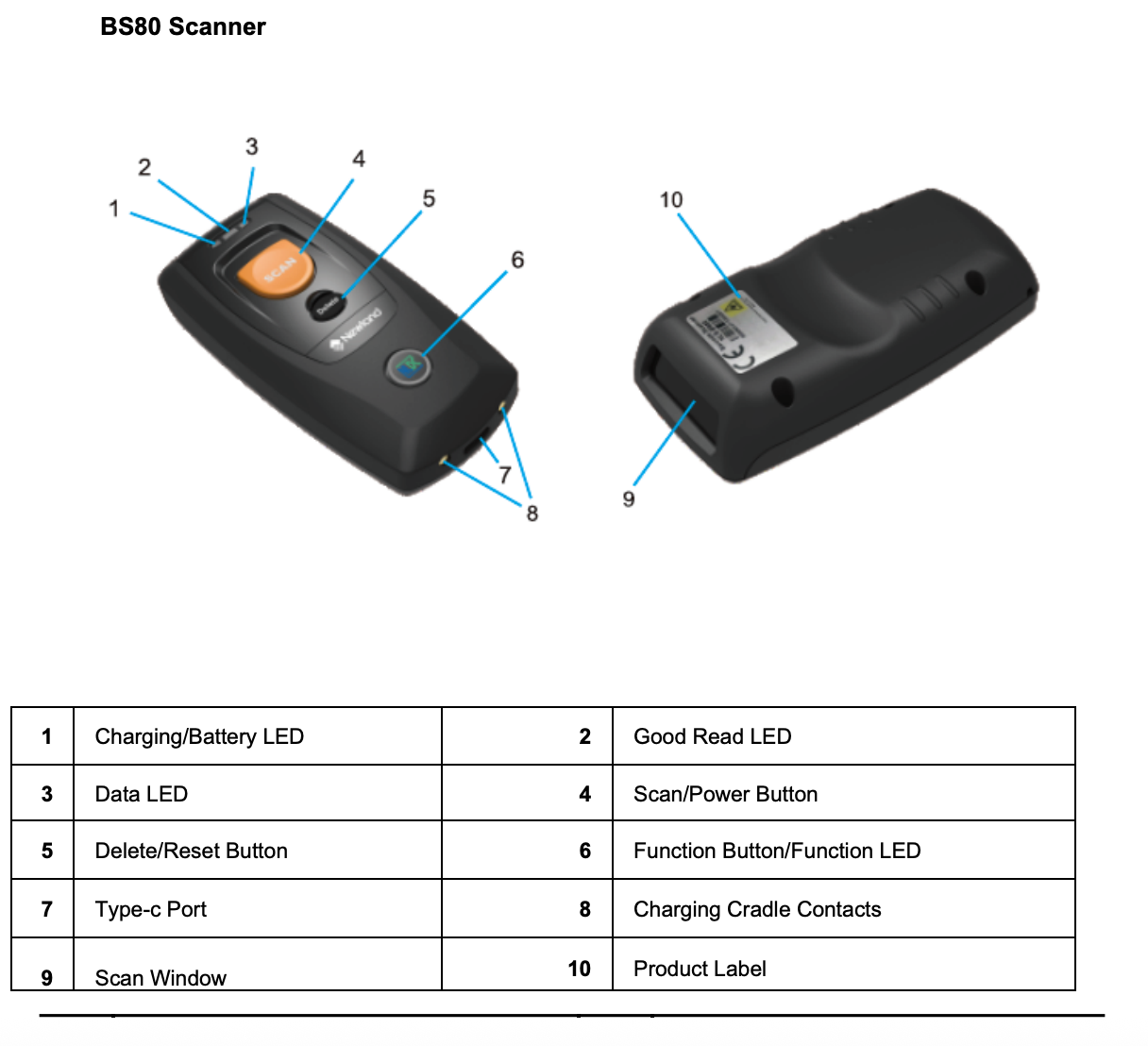
Press and hold the scan/power button for approximately 3 seconds until the scanner turns on.
To Power Off
Press and hold the delete/reset button for approximately 7 seconds until the scanner powers off
Disconnecting the Scanner from Bluetooth
If the scanner is connected to another device or not pairing correctly, use one of the following methods:
Method 1: Reset Bluetooth Pairing from the Scanner
- Press and hold the delete/reset button and function button together
- This will remove any existing Bluetooth connections and allow the scanner to be paired again
Method 2: Remove the Scanner from Your Device
- Open your device’s Bluetooth settings
- Locate the scanner in the list of paired devices
- Select the scanner
- Tap Forget or Unpair
Method 3: Factory Reset (if required)
- Scan the barcode below:

- Repeat the setup process from Step 1
How do I contact AirPOS Support?
If you have any questions at all you can reach our support chat by clicking on the small button in the bottom right corner of your knowledge base or on your Backoffice page labeled "Contact support"

Alternatively, you can email us at Support@airpos.co.uk